> ## Documentation Index
> Fetch the complete documentation index at: https://docs.spurdoverse.app/llms.txt
> Use this file to discover all available pages before exploring further.
# Math
> Angle math, screen projection, and interpolation - built into the global Math object.
The engine extends the global `Math` object. No imports needed - just call
`Math.calcAngle(...)` like you'd call `Math.sin(...)`.
All angles are in **radians** unless stated otherwise. Convert with
`Math.toRadians(deg)` and `Math.toDegrees(rad)`.
## Overview
Convert between directions and Euler angles, calculate aim angles.
Project 3D world positions onto your 2D screen.
Clamp, normalize, and compare angles safely.
Lerp, smooth step, remap - smooth everything.
***
## Vectors & angles
These three functions convert between world positions, direction vectors,
and Euler angles ([QAngle](/api/types#qangle)). They form the core of
any aim or movement calculation.
### calcAngle
```ts theme={null}
Math.calcAngle(src: Vector, dst: Vector): QAngle
```
Returns the angle you'd need to look from `src` directly at `dst`.
This is the function you reach for first in any aim-related code.
| Param | Type | |
| :- | :- | :- |
| `src` | [Vector](/api/types#vector) | Your eye position |
| `dst` | [Vector](/api/types#vector) | Where you want to look |
```ts Basic aim angle theme={null}
import Entities from "@native/entities";
const local = Entities.getLocalPlayer();
const enemy = Entities.getPlayers({ skipLocal: true })[0];
const aim = Math.calcAngle(
local.m_pGameSceneNode.m_vecAbsOrigin,
enemy.m_pGameSceneNode.m_vecAbsOrigin
);
```
```ts Closest target by FOV theme={null}
import Entities from "@native/entities";
const local = Entities.getLocalPlayer();
const myEyePos = local.m_pGameSceneNode.m_vecAbsOrigin;
const myViewAngle = local.m_angEyeAngles;
let bestFov = Infinity;
let bestTarget = null;
for (const enemy of Entities.getPlayers({ skipLocal: true })) {
if (enemy.m_iHealth <= 0) continue;
const aim = Math.calcAngle(myEyePos, enemy.m_pGameSceneNode.m_vecAbsOrigin);
const fov = Math.calculateFOV(myViewAngle, aim);
if (fov < bestFov) {
bestFov = fov;
bestTarget = enemy;
}
}
```
The returned angle is **not** normalized. Pipe it through
[clampAngles](#clampangles) before sending to the engine - it
hard-caps pitch to `[-89, 89]` which the engine requires.
Use [normalizeAngles](#normalizeangles) instead if you only need to
wrap overflows (e.g. for angle comparisons or delta calculations).
### angleVectors
```ts theme={null}
Math.angleVectors(angle: QAngle): { forward: Vector, right: Vector, up: Vector }
```
Decomposes an Euler angle into three perpendicular direction vectors.
"Where am I looking?" → `forward`. "What's to my right?" → `right`.
| Param | Type | |
| :- | :- | :- |
| `angle` | [QAngle](/api/types#qangle) | Euler angle to decompose |
```ts theme={null}
import Entities from "@native/entities";
const local = Entities.getLocalPlayer();
const eyePos = local.m_pGameSceneNode.m_vecAbsOrigin;
const { forward } = Math.angleVectors(local.m_angEyeAngles);
// Project 1000 units ahead of the player's view
const traceEnd = eyePos.add(forward.scale(1000));
```
You rarely need all three vectors. Destructure only what you use -
`const { forward } = ...` is the most common pattern.
See also: [vectorAngles](#vectorangles) - the inverse operation.
### vectorAngles
```ts theme={null}
Math.vectorAngles(vec: Vector): QAngle
```
The inverse of `angleVectors` - converts a direction vector back to an
Euler angle.
| Param | Type | |
| :- | :- | :- |
| `vec` | [Vector](/api/types#vector) | Direction to convert |
```ts theme={null}
const moveAngle = Math.vectorAngles(entity.getVelocity());
// moveAngle.yaw → compass direction the entity is walking
```
See also: [angleVectors](#anglevectors) - the inverse operation.
***
## Screen projection
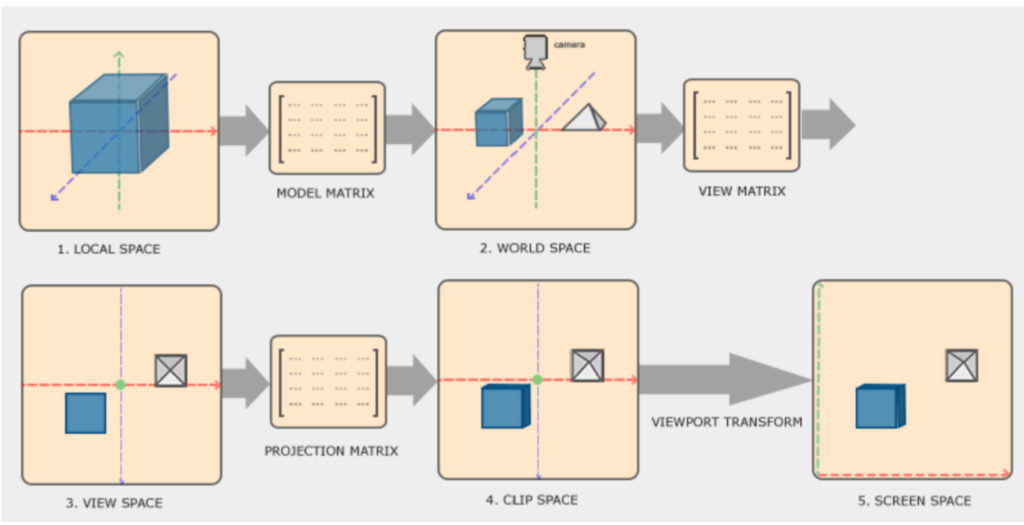
These functions bridge 3D world space and 2D screen space. You need them
every time you draw something at a game object's position.
 ### worldToScreen
```ts theme={null}
Math.worldToScreen(vec: Vector): { success: boolean, screen: Vector2 }
```
Projects a 3D position to **pixel coordinates** on your monitor.
This is the function you'll use 99% of the time for ESP and overlays.
| Param | Type | |
| :- | :- | :- |
| `vec` | [Vector](/api/types#vector) | World position to project |
| Returns | Type | |
| :- | :- | :- |
| `success` | `boolean` | `false` if the point is behind the camera |
| `screen` | [Vector2](/api/types#vector2) | Pixel coords, top-left origin |
```ts theme={null}
import Entities from "@native/entities";
import Render from "@native/render";
on("tick", () => {
for (const enemy of Entities.getPlayers({ skipLocal: true })) {
if (enemy.m_iHealth <= 0) continue;
const pos = enemy.m_pGameSceneNode.m_vecAbsOrigin;
const { success, screen } = Math.worldToScreen(pos);
if (success) {
Render.circleFilled(screen, 4, Color.red());
Render.text({ x: screen.x + 8, y: screen.y - 6 }, enemy.controller?.m_iszPlayerName, Color.red());
}
}
});
```
**Never skip the `success` check.** Behind-camera positions project to
random screen edges and cause wild flickering. This is the #1 ESP bug.
Full walkthrough: [Drawing on screen](/learn/drawing-on-screen) builds
a complete ESP overlay step by step using `worldToScreen`.
### screenTransform
```ts theme={null}
Math.screenTransform(vec: Vector): { success: boolean, screen: Vector2 }
```
Same as `worldToScreen` but returns **normalized device coordinates** (`-1`
to `1`) instead of pixel values. For custom projection math only.
| Param | Type | |
| :- | :- | :- |
| `vec` | [Vector](/api/types#vector) | World position to project |
| Returns | Type | |
| :- | :- | :- |
| `success` | `boolean` | `false` if the point is behind the camera |
| `screen` | [Vector2](/api/types#vector2) | NDC coords, `(-1, -1)` to `(1, 1)` |
```ts theme={null}
import Entities from "@native/entities";
import Render from "@native/render";
const enemy = Entities.getPlayers({ skipLocal: true })[0];
const { success, screen } = Math.screenTransform(enemy.m_pGameSceneNode.m_vecAbsOrigin);
if (success) {
const { x: screenWidth, y: screenHeight } = Render.getScreenSize();
const px = (1 + screen.x) / 2 * screenWidth;
const py = (1 - screen.y) / 2 * screenHeight;
}
```
***
## Angle normalization
Engine angles can overflow or land outside expected ranges after math
operations. These functions clean them up.
### clampAngles
```ts theme={null}
Math.clampAngles(angle: QAngle): QAngle // mutates in place
```
Hard-clamps each component to engine-safe bounds and returns the same object.
| Component | Clamped to |
| :- | :- |
| Pitch | `[-89, 89]` |
| Yaw | `[-180, 180]` |
| Roll | `[-50, 50]` |
```ts theme={null}
const aim = Math.calcAngle(localPos, enemyPos);
Math.clampAngles(aim);
// Safe to send to engine now
```
Mutates the original. Clone first if you need the raw value:
`const safe = Math.clampAngles({ ...rawAngle });`
### normalizeAngles
```ts theme={null}
Math.normalizeAngles(angle: QAngle): QAngle // mutates in place
```
Wraps all components into `[-180, 180]` using modular arithmetic
and returns the same object.
Unlike `clampAngles`, `270°` becomes `−90°`, not `180°`.
```ts theme={null}
Math.normalizeAngles(angle);
// 270° → -90° | -540° → 180° | 45° → 45° (unchanged)
```
Mutates the original, just like [clampAngles](#clampangles).
Clone first if you need the raw value:
`const wrapped = Math.normalizeAngles({ ...rawAngle });`
### calculateFOV
```ts theme={null}
Math.calculateFOV(view: QAngle, aim: QAngle): number
```
Returns the angular distance (in degrees) between two look-directions.
Think of it as "how many degrees would I move my crosshair to reach this?"
| Param | Type | |
| :- | :- | :- |
| `view` | [QAngle](/api/types#qangle) | Your current view angle |
| `aim` | [QAngle](/api/types#qangle) | Target angle (from [calcAngle](#calcangle)) |
**Returns** `number` - `0` = perfectly aligned, `180` = opposite direction.
```ts theme={null}
import Entities from "@native/entities";
const local = Entities.getLocalPlayer();
const myEyePos = local.m_pGameSceneNode.m_vecAbsOrigin;
const enemy = Entities.getPlayers({ skipLocal: true })[0];
const aim = Math.calcAngle(myEyePos, enemy.m_pGameSceneNode.m_vecAbsOrigin);
const fov = Math.calculateFOV(local.m_angEyeAngles, aim);
if (fov < 5) {
// Target is within 5° of crosshair
}
```
***
## Interpolation & mapping
Five functions for smoothing, clamping, and remapping values.
The building blocks for animations, health bars, opacity fades,
and anything that transitions between two states.
### clamp
```ts theme={null}
Math.clamp(value: number, min: number, max: number): number
```
Restricts a value to `[min, max]`. Below min → min. Above max → max.
```ts theme={null}
Math.clamp(1.5, 0, 1); // 1 - capped at max
Math.clamp(-3, 0, 100); // 0 - capped at min
Math.clamp(50, 0, 100); // 50 - in range, untouched
// Always clamp health fraction before using it
const fill = Math.clamp(health / maxHealth, 0, 1);
```
### lerp
```ts theme={null}
Math.lerp(a: number, b: number, t: number): number
```
Linear interpolation. `t=0` → `a`, `t=1` → `b`, `t=0.5` → midpoint.
Not clamped - `t` outside `[0, 1]` extrapolates past the endpoints.
```ts theme={null}
Math.lerp(0, 100, 0.25); // 25
Math.lerp(0, 100, 0.5); // 50
Math.lerp(0, 100, 1.5); // 150 (extrapolates)
// Smooth follow: ease toward target each frame
currentX = Math.lerp(currentX, targetX, 0.3);
```
`lerp` with a constant `t` each frame gives **exponential decay** - the
object slows as it approaches the target. `0.1–0.3` feels smooth,
`0.5+` feels snappy.
### inverseLerp
```ts theme={null}
Math.inverseLerp(a: number, b: number, val: number): number
```
The reverse of `lerp`: given a value in the `[a, b]` range, returns where
it sits as a `0–1` factor.
Returns `0` if `a === b` (avoids division by zero). Keep this in mind
when `a` and `b` come from game data that might collapse to a single value.
```ts theme={null}
Math.inverseLerp(0, 100, 25); // 0.25 - a quarter through
Math.inverseLerp(0, 100, 100); // 1.0 - at the end
Math.inverseLerp(0, 100, 150); // 1.5 - past the end (not clamped)
// "How far through the animation?"
const progress = Math.inverseLerp(startTime, endTime, now);
```
### smoothStep
```ts theme={null}
Math.smoothStep(a: number, b: number, t: number): number
```
Like `lerp` but with easing - starts slow, speeds up, ends slow.
Internally clamps `t` to `[0, 1]`, then applies `3t² − 2t³`.
```ts theme={null}
Math.smoothStep(0, 1, 0.0); // 0.0 - start
Math.smoothStep(0, 1, 0.1); // 0.028 - slow ramp
Math.smoothStep(0, 1, 0.5); // 0.5 - midpoint
Math.smoothStep(0, 1, 0.9); // 0.972 - slow finish
Math.smoothStep(0, 1, 1.0); // 1.0 - end
```
```ts theme={null}
const t = Math.clamp(health / maxHealth, 0, 1);
const barWidth = Math.smoothStep(0, 200, t);
// Visually emphasizes low/full HP more than a linear bar
```
```ts theme={null}
const alpha = Math.smoothStep(0, 255, animProgress);
const color = new Color(255, 255, 255, alpha);
```
```ts theme={null}
const t = Math.clamp((now - moveStart) / 300, 0, 1);
posX = Math.smoothStep(fromX, toX, t);
posY = Math.smoothStep(fromY, toY, t);
```
**lerp vs smoothStep vs lerp-per-frame:**
| Pattern | Motion | Clamps `t`? | Best for |
| :- | :- | :- | :- |
| `lerp(a, b, t)` | Constant speed (with linear `t`) | No | Timed animations with linear `t` |
| `smoothStep(a, b, t)` | Ease in-out | Yes, to `[0, 1]` | UI transitions, overlay animations |
| `x = lerp(x, target, 0.3)` per frame | Exponential decay | N/A | Following a moving target |
### remapVal
```ts theme={null}
Math.remapVal(val: number, srcMin: number, srcMax: number, dstMin: number, dstMax: number): number
```
Maps a value from one range to another. The Swiss army knife for converting
game values to visual properties.
Does **not** clamp - wrap in [clamp](#clamp) if you need bounded output.
```ts theme={null}
// Green at full HP, red at zero
const r = Math.remapVal(health, 0, 100, 255, 0);
const g = Math.remapVal(health, 0, 100, 0, 255);
const color = new Color(r, g, 0, 255);
```
```ts theme={null}
// Fade out between 2000–8000 units
const alpha = Math.clamp(
Math.remapVal(distance, 2000, 8000, 255, 40),
40, 255
);
```
```ts theme={null}
const barPx = Math.remapVal(health, 0, maxHealth, 0, 200);
```
```ts theme={null}
// Smaller FOV circle when target is far away
const radius = Math.remapVal(distance, 0, 5000, 20, 4);
```
Values outside the source range extrapolate: health `120` mapped from
`[0, 100]` to `[0, 255]` gives `306`. Always clamp when your data can
exceed the expected range:
```ts theme={null}
const safe = Math.clamp(Math.remapVal(val, 0, 100, 0, 255), 0, 255);
```
If `srcMin === srcMax`, the result is a division by zero. Guard against
this when source bounds come from game data (e.g. `maxHealth` could be `0`
for a newly spawned entity).
### Putting it together
A typical overlay pipeline chains several interpolation functions.
Here's a complete example - an ESP name tag that fades and shrinks
with distance:
```ts theme={null}
import Entities from "@native/entities";
import Render from "@native/render";
on("tick", () => {
const local = Entities.getLocalPlayer();
if (!local) return;
const localPos = local.m_pGameSceneNode.m_vecAbsOrigin;
for (const enemy of Entities.getPlayers({ skipLocal: true })) {
if (enemy.m_iHealth <= 0) continue;
const enemyPos = enemy.m_pGameSceneNode.m_vecAbsOrigin;
const { success, screen } = Math.worldToScreen(enemyPos);
if (!success) continue;
const distance = localPos.distTo(enemyPos);
// 1. Figure out where we are in the distance range (0–1)
const t = Math.clamp(Math.inverseLerp(500, 6000, distance), 0, 1);
// 2. Ease the factor so transitions feel smooth, not linear
const eased = Math.smoothStep(0, 1, t);
// 3. Map to visual properties
const alpha = Math.lerp(255, 30, eased);
const color = new Color(255, 255, 255, alpha);
Render.text(screen, enemy.controller?.m_iszPlayerName, color);
}
});
```
***
## Angle conversion
| Function | Signature | Example |
| :- | :- | :- |
| `toRadians` | `Math.toRadians(deg: number): number` | `Math.toRadians(180)` → `3.14159…` |
| `toDegrees` | `Math.toDegrees(rad: number): number` | `Math.toDegrees(Math.PI)` → `180` |
```ts theme={null}
// FOV check in degrees, but trig functions need radians
const fovRad = Math.toRadians(90);
const halfWidth = Math.sin(fovRad / 2) * distance;
```